
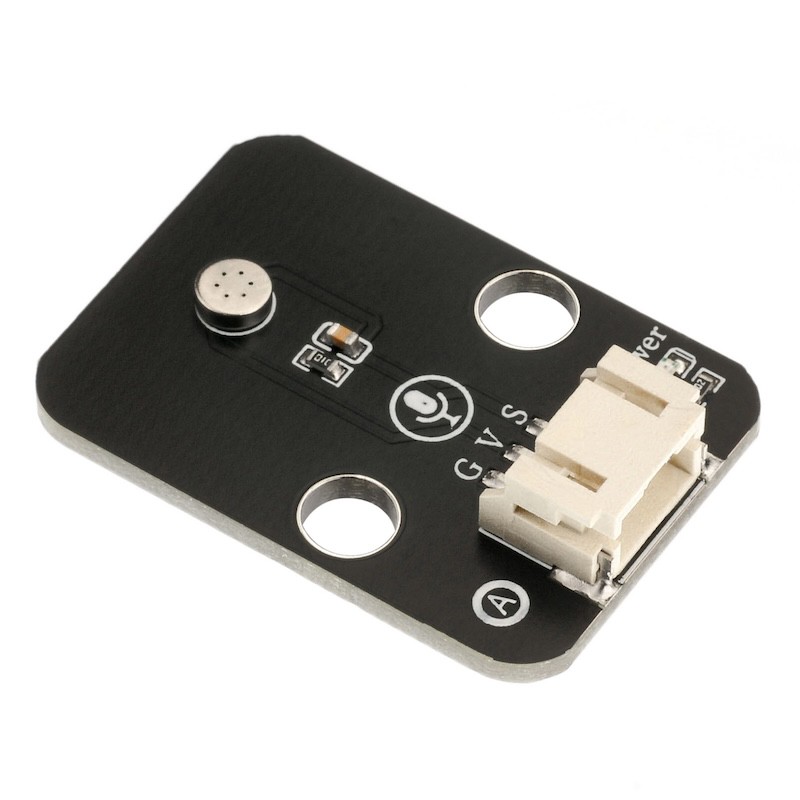
1. Introduction
The function of the sound sensor module is equivalent to a microphone (microphone).It is used to receive sound waves, display the vibration image of sound, but cannot measure the intensity of noise.The sensor is built-in with a sound-sensitive capacitive condenser microphone.Sound waves cause the piezoelectric film inside the microphone to vibrate, resulting in a change in capacitance, and thus producing a corresponding small voltage change.This voltage is then converted into a 0-5V voltage, which is accepted by the data acquisition device after A/D conversion and sent to the main control chip.
2. Schematic
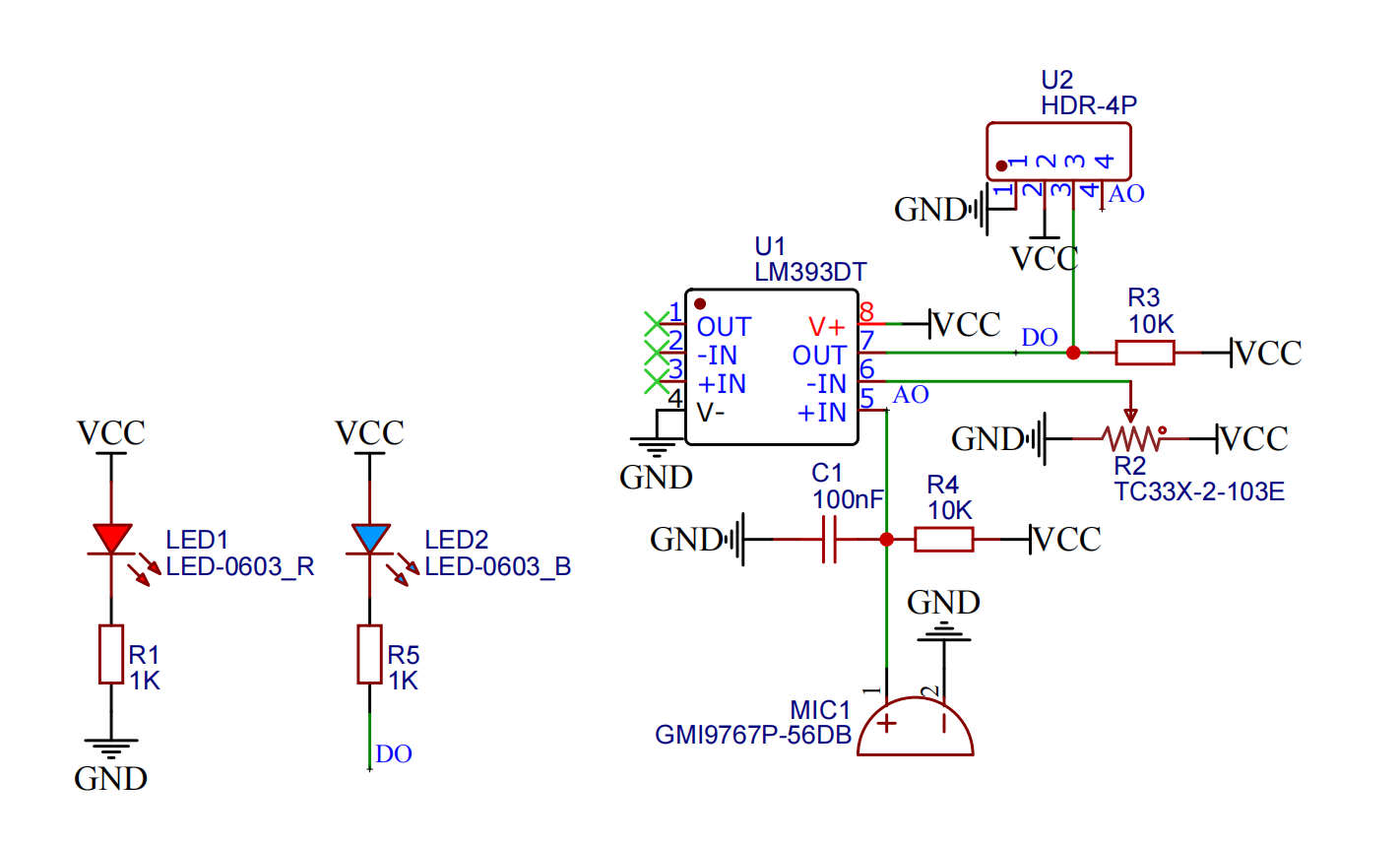
Module Parameters
Pin Name | description |
|---|---|
G | GND (Negative Power Input) |
V | VCC (Positive Power Input) |
S | Digital Signal Pin |
Power Supply Voltage: 3.3V / 5V
Connection method: PH2.0 3P terminal
Installation Method: Double Screw Fixed
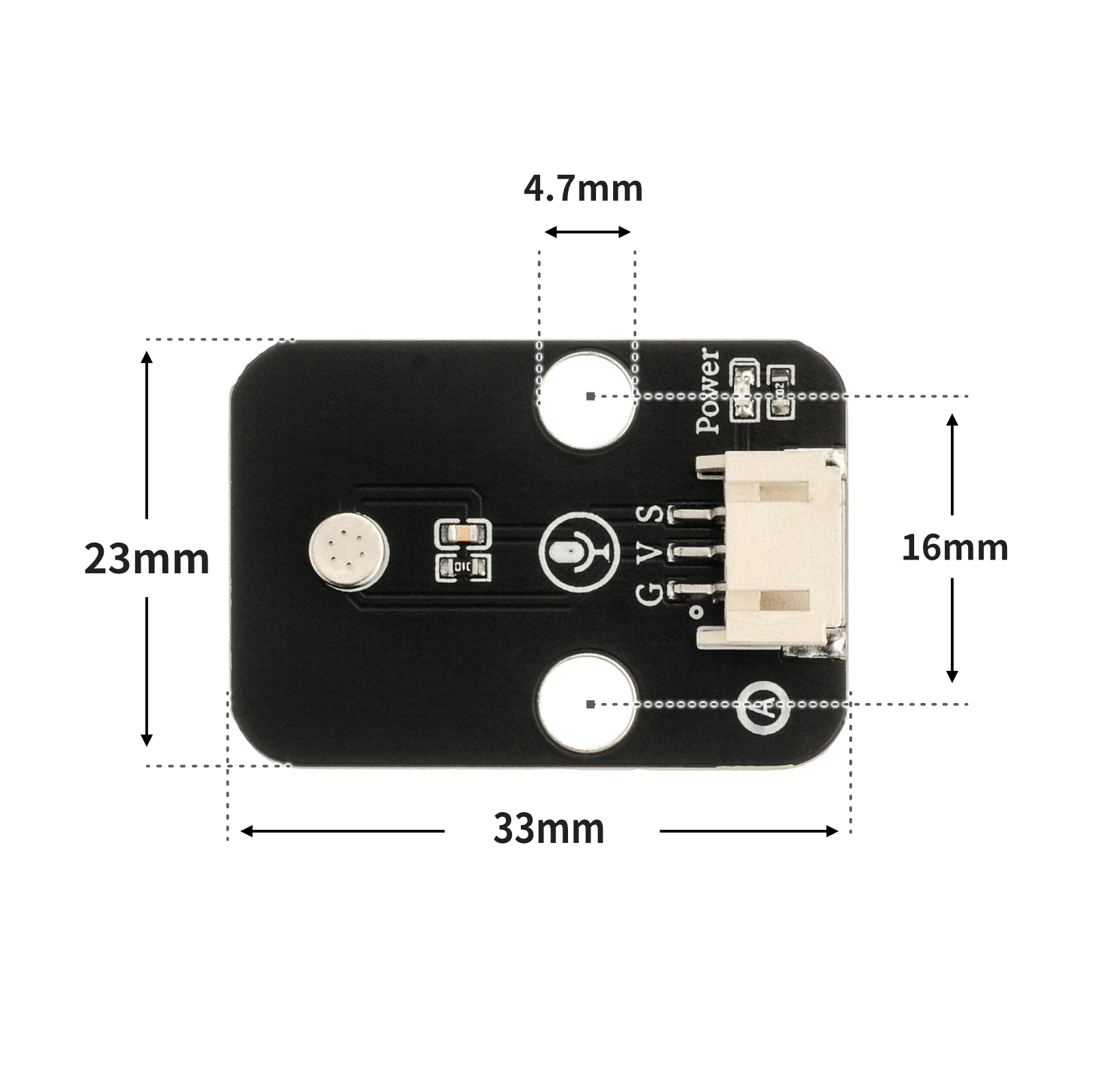
4, Circuit Board Size
5 of Arduino IDE example program
Attention: If prompted with an error message about the library file during program upload, please import the library file first!
Arduino IDE Library Download and Import Tutorial:Click to view
Example program (UNO development board):
volatile int value_A;
void setup() {
 Serial.begin(9600);
 value_A = 0;
 pinMode(A0, INPUT);
 pinMode(6, OUTPUT);
}
void loop() {
 value_A = analogRead(A0);//声音传感器A口接A0口S脚,声音传感器s口不接跳线,led灯模块接D6 口。
 Serial.print(" 声音传感器模拟口值:");
 Serial.println(value_A);
 //保证安静环境下声音传感器模拟口
 if (value_A > 352|| value_A < 280) {
 digitalWrite(6, HIGH);
 delay(1000);
 } else {
 digitalWrite(6, LOW);
 }
}
6, ESP32 Python Example (for Mixly IDE/Misashi)
Choose the development board Python ESP32 [ESP32 Generic(4MB)] and upload in code mode
Attention: If prompted with an error message about the library file during program upload, please import the library file first!
Download and import tutorial for Mixly IDE ESP32 library:Click to view
Example program (ESP32-Python):
import machine
import time

adc32.atten(machine.ADC.ATTN_11DB)
pin4 = machine.Pin(4, machine.Pin.OUT)
while True:
if adc32.read_u16() >= 40000:
pin4.value(1)
time.sleep(1)
else:
pin4.value(0)
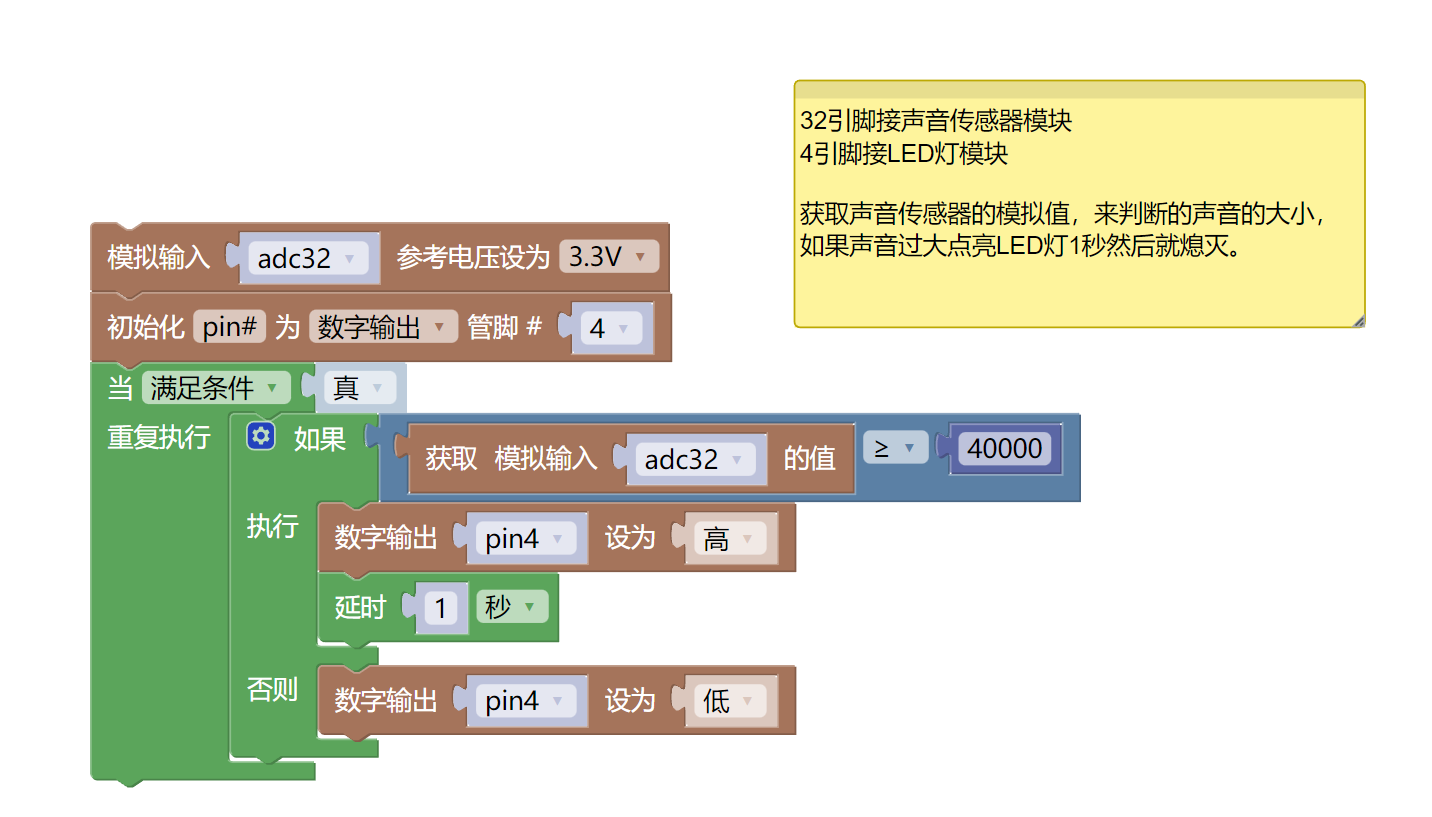
7, Mixly example program (graphical language)
Example program (UNO development board):Click to download
Example Program (ESP32 Development Board):Click to download
8. Setting up the Test Environment
Arduino UNO Test Environment Setup
Prepare Components:
HELLO STEM UNO R3 PRO DEVELOPMENT BOARD *1
HELLO STEM UNO R3 P EXPANSION BOARD *1
USB TYPE-C DATA CABLE *1
LED module (HS-F08L) *1
Sound Sensor Module (HS-S44L) *1
PH2.0 3P double-ended terminal line
Circuit wiring diagram:Pending update...
ESP32 Test Environment Setup
Prepare Components:Pending update...
Circuit wiring diagram:Pending update...
9, Video tutorial
Arduino UNO video tutorial:Click to view
ESP32 Python Video Tutorial:Pending update...
10, Test results
Arduino UNO Test Conclusion:
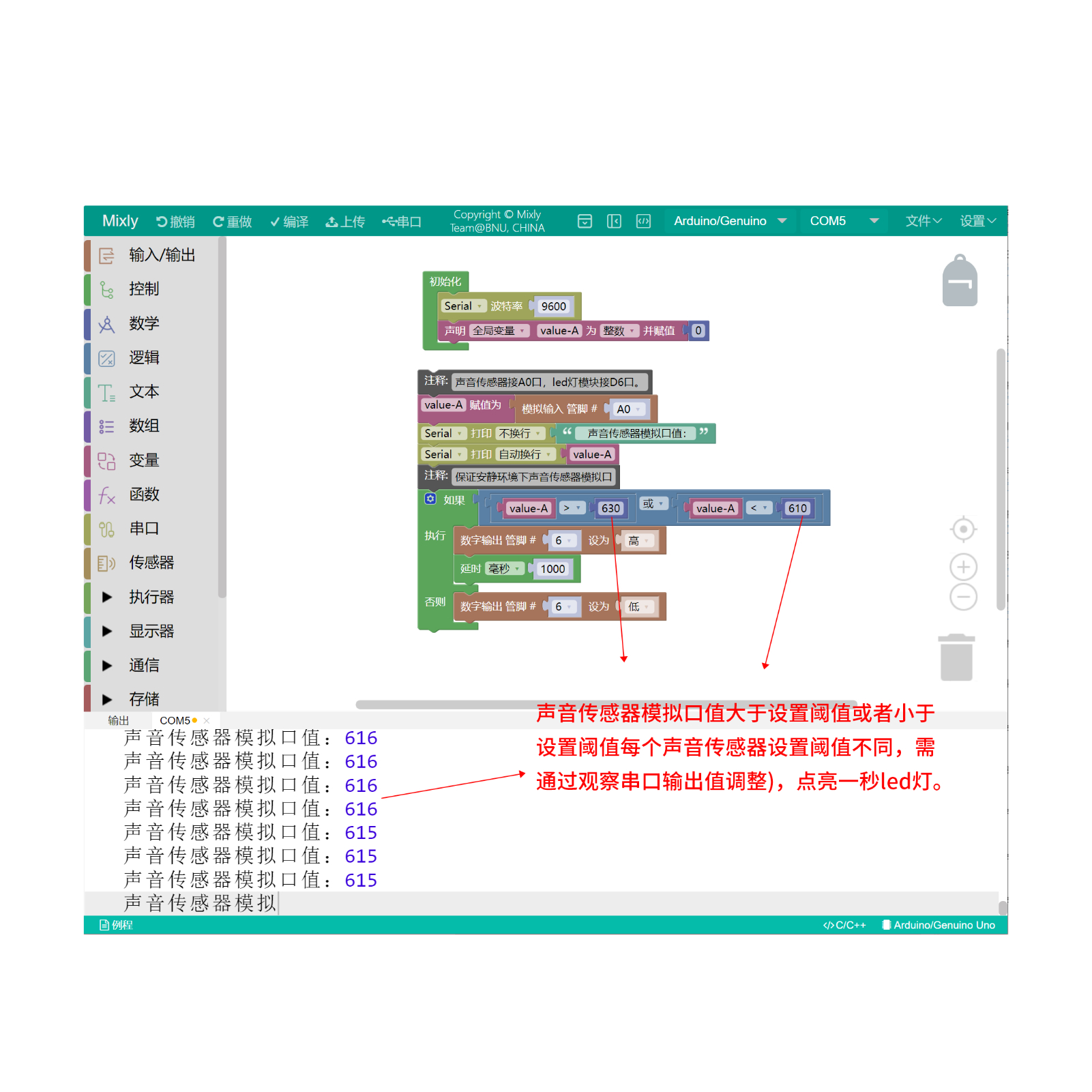
ESP32 Python test conclusion:
After the device is connected to the wire, upload the above program to the ESP32 development board, open the serial monitor, and if the analog value of the sound sensor is greater than the set threshold (detecting sound), the LED light will turn on for 1 second, otherwise the LED light will turn off.